Tuesday, January 27, 2015

Oracle EBS Personalization, Extension, Customization

In Oracle E-Business Suite development terms Personalization, Customizations, Extensions & localization are often used interchangeably. It often creates confusion among developers regarding the meaning of these terms. These terms are critically important terms that developers must understand and use properly. Let’s describe briefly.


What is Personalization?

Personalization/Configuration is the process of making changes to the User Interface (UI) from within an Oracle E-Business Suite Form/Page. It is possible to make personalization to both Form-based and OA Framework based pages.

What is Extension?

Extension is the process of making changes to the programmatic (i.e. PL/SQL or Java) elements of an E-Business Suite form/page, reports etc. It is possible to extend both Forms based and OA Framework-based pages.

What is Customization?

Customization is the process of creating new forms/pages. While Oracle does provide tools to do this (i.e., Oracle Forms and JDeveloper 10g with OA Extension), this is the least supported option.

WHO columns in Oracle EBS

It is best practice if you keep history of record in any application. Oracle implemented the feature of tracking data. The tracking of data stored WHO columns.

Below are the WHO columns exists in almost all tables of Oracle Apps.

• created_by          – Keeps track of user who inserted/created the record.
• creation_date      – Stores the record insertion/creation date.
• last_update_by    – Keeps track of last user who updated the record.
• last_update_date – Stores the record changed/updated date.
• last_update_login – Login Session ID of the user.

Column Name      How data is populated? 
created_by            TO_NUMBER(FND_PROFILE.VALUE(‘USER_ID’))
creation_date         SYSDATE
last_updated_by    TO_NUMBER(FND_PROFILE.VALUE(‘USER_ID’))
last_update_date   SYSDATE
last_update_login  TO_NUMBER(FND_PROFILE.VALUE(‘LOGIN_ID’))

Sunday, January 25, 2015

Techno-Functional Consultants Roles & Responsibilities


1.       Requirement gathering, study in details.
2.       Preparation of RD020 document – List of Discovery questions.
3.       Mapping the requirements to Application process / Business Process Mapping.
4.       GAP fit Analysis.
5.      Level-3 Process design (Flow charts).
6.       Application configuration/setup for Oracle Applications (HRMS, Inventory, Purchasing, GL, AP, AR
Modules etc) and custom extensions in the various instances of the release life Cycle.
7.       Setup document management (version Control & Incremental setup) – Business requirement (BR 100) setup for each application.
8.       Functional specification (MD.50) for customizations / Data Flow Diagram.
9.       Development of customization requirements.
10.   Testing of Customizations (Forms, Interfaces and Reports).
11.   Resolution of issues rose during CRP/SIT/UAT sessions by Managers, key users, end users and regression testing team.
12.   Raising Technical Assist Request (TARs) with oracle for different issues and following up till resolution. 
13. Coordination with client managers/Key users and other teams for issue resolutions and getting sign-off for release to be moved to production.


Oracle Apps RICE Components


The RICE stands for Reports, Interfaces, Conversions & Extensions/ Enhancements. Oracle apps technical consultant use to work on RICE components to satisfy functional requirements & for achieving the desired functionality.  

Now I will define each of above component.

Reports:

Oracle apps technical consultant has to develop/ create the report which is not available in the oracle apps module. The reports can be develop/ create using pl/sql and reports builder.

Interfaces:

The interface and conversions are similar, only difference is conversion is once and interfaces is ongoing process.

There are two types of interface

1. Inbound Interface
2. Outbound Interface

Inbound Interface: Transferring the data from the legacy system (E.g.: Excel Sheet) into the Oracle apps base tables.
Outbound Interface: Transferring the data from the Oracle apps base tables into the legacy system (E.g: SAP, Peoplesoft etc).

Conversion:

Oracle apps technical consultant writes the code using sql loader to load data from legacy system into oracle apps tables.

Extensions:

Extensions/ Enhancements are also called form personalization; if we wish to enhance the functionality to any required form oracle apps technical consultant will enhance the form using oracle forms developer.

Monday, December 8, 2014

Oracle EBS Shut Down Script for Windows

To Shut Down Application Server.
Let us assume that oracle is installed on c:\oracle
Navigate to Command prompt   Star>Run>Cmd
C:
cd\
cd oracle\PROD\inst\apps\PROD_r12\admin\scripts
adstpall
To Shut Down Database Services.
c:
cd\
cd C:\oracle\PROD\db\tech_st\11.1.0\appsutil\scripts\PROD_r12
addbctl stop immediate
To Shut Down Listner
c:
cd\
cd C:\oracle\PROD\db\tech_st\11.1.0\appsutil\scripts\PROD_r12
addlnctl stop prod

Wednesday, November 26, 2014

Develop a form using form developer and register with oracle application R12

There are two steps we will perform
  1. Develop a form using Oracle Forms Builder.
  2. Register the new developed form with oracle application  
Develop a form using Oracle Forms Builder.

Start → Run → frmbld

Connect the Oracle Forms Builder with database

File →Connect
 
Enter User Name, Password and Database and press connect button


We will develop a form using wizard

Right click on Module and choose Data Block Wizard


The Data Block Wizard welcome screen will appear to you and click next button with default options.


Select the type of Data Block like Table/ View / Store Procedure. I will go with default and click next button.


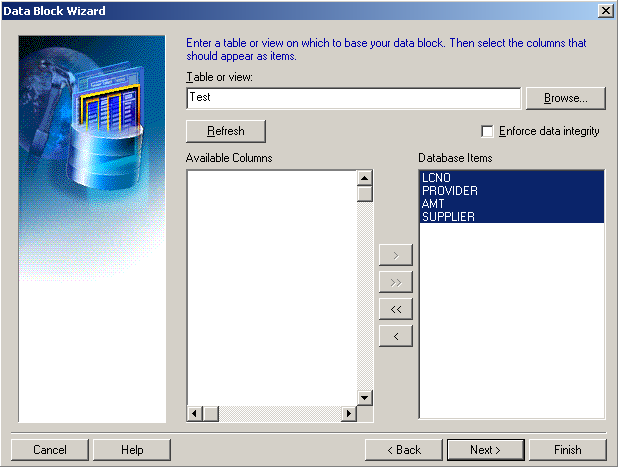
Browse/ type the table or view on which to base your data block. Click refresh button and make sure the columns should appear in available columns list.


Move all the Available columns to Database items list and click next button.


Enter the Name of your block and click next button.


You have finished the data block wizard steps and congratulation screen will appear. Click finished button with default settings.


After completing the Data Block wizard, the layout wizard welcome screen will appear. This wizard will allow you to quickly and easily lay out the item of a data block. The wizard will display the item in a frame on a canvas, and lay them out in one of several styles. Click next to begin creating your frame.


Select the canvas from canvas drop down on which you wish to lay out the data block’s items. Click next button.


Move the entire item from available items list to Display items list and Click next button.


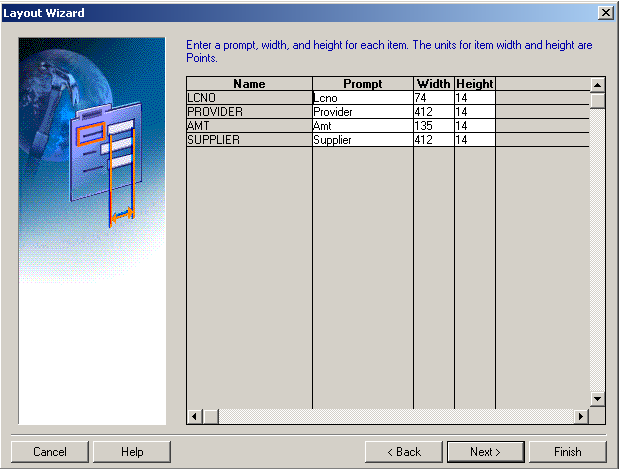
Enter a prompt, width and height for each item. Click next button.


Select the layout style for your frame by clicking the radio button below. I will go with default and click next button.


Enter a title for the frame and be sure to specify the number of database records to be displayed in the frame as well as distance.

 If you wish to display scroll in the frame then check the “Display Scrollbar” check box.
Click next button


You have finished the layout wizard steps and congratulation screen will appear. Now Click finished button with default settings.

After completing the layout wizard the below you will have below screen


Save the form File → Save or press CTRL + S

Here is the screen which define the path.


Run the form press CTRL + R and fill up the data in columns.


Register the form with Oracle Application

Associate form to Application Forms

Application Developer → Application → Forms

Fill up columns as filled in below screen.


Save & close it

Associate form to Application Form Functions

Navigation:

Application Developer → Application → Form Functions

Fill up columns as filled in below screen.


Click on form tab and fill up information

Save & close it.

Associate Function to Menu

Navigation:

Application Developer → Application → Menu

Fill up columns as filled in below screen.


Save & close it.

Define Data Group

Navigation:

System Administrator → Security → Oracle → DataGroup

Fill up columns as filled in below screen.

Save & close it.

Define Responsibility and Assign Data Group

Navigation:

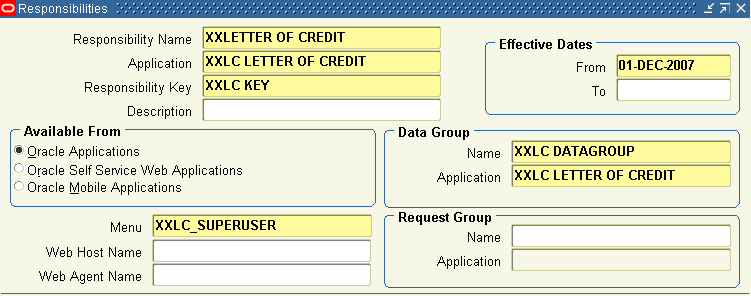
System Administrator → Security → Responsibility → Define

Fill up columns as filled in below screen.

Save & close it.

Attach responsibility to user

Navigation:

System Administrator → Security → User → Define

Fill up columns as filled in below screen.


Save & close it. Click on File menu and click on switch to responsibility and select your responsibility.


Save it.


Script/ Auto job to kill inactive sessions for more than 30 minutes


How to kill inactive sessions?

1. Create the procedure to select the sessions whose last call exceed 30 minutes and current status is in active.

CREATE OR REPLACE PROCEDURE PROC_KILL_INACTIVE_SESSION is

STMT VARCHAR2(1000);

BEGIN

 FOR X IN (
           SELECT SID, SERIAL# FROM V$SESSION
            WHERE STATUS = 'INACTIVE'
            AND (last_call_et / 60) > 30
          )
 LOOP

-- generate the script for killing in active sessions

   STMT := 'ALTER SYSTEM KILL SESSION ''' ||X.SID ||',' ||X.SERIAL# ||'''' ;
              DBMS_OUTPUT.PUT_LINE( STMT );
   EXECUTE IMMEDIATE STMT;
 END LOOP;

END;

2. Create an auto job to run after 30 minutes for killing inactive sessions

DECLARE
  X NUMBER;
BEGIN
  SYS.DBMS_JOB.SUBMIT
    ( job       => X
     ,what      => 'PROC_KILL_INACTIVE_SESSION;'
     ,next_date => to_date('01/01/4000 00:00:00','dd/mm/yyyy hh24:mi:ss')
     ,interval   => 'SYSDATE+30/1440'
     ,no_parse  => TRUE
    );
  SYS.DBMS_JOB.BROKEN
   (job    => X,
    broken => TRUE);
  SYS.DBMS_OUTPUT.PUT_LINE('Job Number is: ' || to_char(x));
END;
/

commit;